
Neurotech Designs

Making Everyday Living Smarter
Neurotech Smart Home is an intelligent home automation solution that allows you to control, monitor, and automate your home appliances from anywhere using a single mobile app. Designed for modern living, it brings convenience, comfort, energy efficiency, and security together in one seamless experience.
Why Neurotech Smart Home?
Neurotech Smart Home App gives you complete control of your home from one simple, elegant interface. Easily manage lights, dimmers, fans, ACs, curtains, and smart panels, create personalized scenes, and switch modes for work, relaxation, or sleep. With precise lighting control, reliable connectivity, and a user-friendly design, Neurotech makes everyday living smarter, more comfortable, and energy efficient.
Central control hub for all devices in the selected room.
Smart Devices
View and control all connected devices in the room.
Power Button
Turn all devices ON or OFF instantly.
Refresh
Reconnect and refresh device status.

Send Data
Apply and sync display settings to the panel device.
Adjust how the physical control panel behaves and looks.
Adjust overall brightness of the panel display.
_edited.png)
Choose between scene-based automation or manual light control.
Activate predefined lighting combinations that control multiple lights together.
Example: Movie Scene, Party Scene, Relax Scene
Feature Card: Remote Lights
Manually control individual lights without using preset scenes.
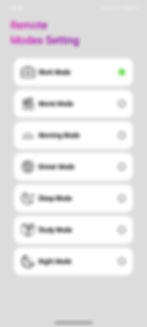
Quickly apply predefined lighting environments for different activities.
Choose a mode to automatically adjust lighting intensity, warmth, and ambience

Toggle ON to reduce latency and improve synchronization.
Instantly turn all selected lights ON or OFF with a single tap.
A Seamless User Experience
Easy-to-use mobile application
Reliable and secure smart home ecosystem
Compatible with leading voice assistants
Customizable automations and scenes
Remote control and monitoring
Designed for modern smart living
Control From Any Device You Love
The Neurotech App delivers total smart home command right at your fingertips.
Available on iOS & Android
Seamless compatibility with smartwatches
One app. One home. One seamless experience.

Control multiple dimmer-based lights from a single screen.
Apply the same settings to all dimmer lights simultaneously.
Warm Intensity
Adjust color temperature from cool to warm.
Brightness
Control light brightness level.

Why Choose Us
A Different Approach, Using a New Method of Manufacturing
-
Install: Place motion lights strategically.
-
Setup: Adjust sensitivity and duration in the app.
-
Integrate: Sync with other smart devices.
-
Enjoy: Experience convenient, secure lighting.


Download Neurotech Smart Home
Available on All Platforms


Neurotech Designs

Register
_edited.png)